Optimize Windows 11 Recall: Reclaim 25GB Storage & Boost Privacy
This guide provides a comprehensive, step-by-step approach to optimizing Windows 11 Recall settings, demonstrating how users can reclaim up to 25GB of storage while simultaneously bolstering their privacy safeguards against unwanted data collection.
The introduction of Windows 11 Recall has sparked considerable discussion, particularly concerning its impact on system resources and user privacy. This Step-by-Step Guide: Optimizing Windows 11 Recall Settings to Reclaim 25GB of Storage and Boost Privacy will navigate you through the essential configurations, helping you maximize your system's efficiency and secure your personal data.
Understanding Windows 11 Recall: What it is and why it matters
Windows 11 Recall is a groundbreaking feature designed to enhance user productivity by allowing you to instantly revisit any activity you've performed on your PC. It essentially takes snapshots of your screen at regular intervals, creating a searchable visual timeline of your digital life. This continuous recording allows for an unparalleled ability to find past information, from a specific line of code in an application you used days ago to a detail in a webpage you visited last week.
While the utility of Recall is undeniable for many, its implementation raises significant questions regarding storage consumption and privacy implications. The constant capturing of screen activity, including sensitive information, means that a substantial amount of data is accumulated on your local drive. This can quickly consume valuable storage space, potentially slowing down your system over time if not managed effectively. Moreover, the nature of the data collected—a comprehensive record of your interactions—makes privacy a paramount concern for many users.
Understanding how Recall operates is the first step toward effective management. It functions by creating an encrypted index of your digital activities, stored locally on your device. This index is then used to quickly search and retrieve past moments. The system is designed to be intelligent, learning from your usage patterns to provide more relevant recall suggestions. However, this intelligence also means that a vast array of personal and professional data could be stored, necessitating careful consideration of its settings.
In essence, Recall aims to act as a personal digital memory, making your interactions with your computer more efficient and less prone to forgotten details. However, this convenience comes with the responsibility of managing its footprint on your system and ensuring your data remains secure. The balance between functionality and control is key to harnessing Recall's power without compromising your digital well-being.
By delving into the core mechanics of Windows 11 Recall, we can better appreciate both its potential benefits and the crucial need for optimization. This foundational understanding will empower you to make informed decisions about how you configure this powerful feature, ensuring it aligns with your personal preferences for performance and privacy.
Initial steps: Accessing Recall settings and understanding defaults
Before diving into advanced optimizations, it's crucial to know how to access Windows 11 Recall settings and understand its default configurations. Microsoft has integrated Recall's controls within the broader Windows Settings application, making them relatively straightforward to locate, though their impact can be profound. Navigating to these settings is the gateway to taking control of your digital memory and its associated resource usage.
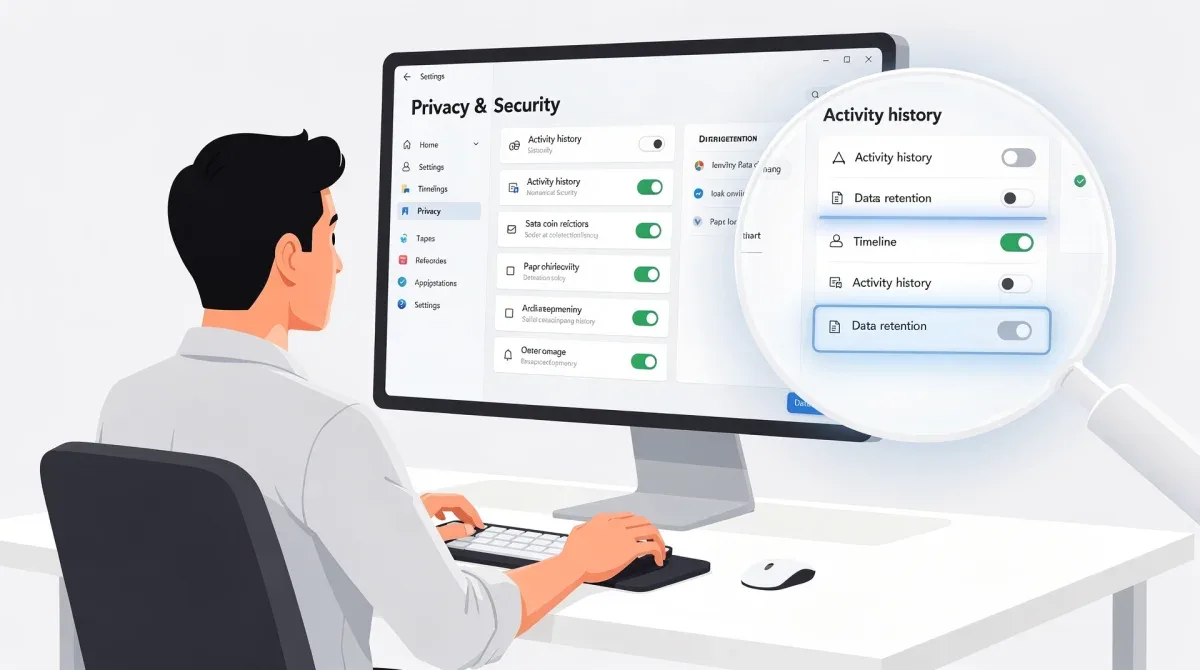
To begin, open the 'Settings' app by pressing Windows key + I or by right-clicking the Start button and selecting 'Settings.' Once there, you'll typically find Recall-related options under the 'Privacy & security' section, often nested within 'Windows permissions' or a dedicated 'Recall' entry. Microsoft's UI may evolve, so a quick search within the Settings app for 'Recall' can also pinpoint the exact location.
Locating Recall's configuration panel
- Open 'Settings' (
Windows key + I). - Navigate to 'Privacy & security'.
- Look for 'Recall & snapshots' or a similar entry.
- Click to access the detailed settings.
Upon entering the Recall settings, you'll notice several options that dictate its behavior. By default, Recall is often enabled, with a predetermined amount of disk space allocated for storing snapshots. This default allocation can be quite generous, sometimes reserving a significant portion of your drive without explicit user consent. It's this default behavior that often leads to substantial storage consumption, especially on devices with smaller SSDs.
Understanding these defaults is critical. For instance, the system might be configured to retain snapshots for an extended period, or even indefinitely, which contributes directly to the rapid accumulation of data. The default settings are designed for general use, aiming for a balance between functionality and minimal user intervention, but they rarely cater to specific user needs regarding privacy or storage efficiency. This makes manual adjustment not just recommended, but often necessary.
The initial access point also provides an overview of how much storage Recall is currently using. This visual feedback is invaluable for assessing the immediate impact on your system resources. Take note of this figure, as it will serve as a benchmark for the storage you aim to reclaim through optimization.
In summary, the initial steps involve locating the Recall settings and familiarizing yourself with its default operational parameters. This foundational understanding sets the stage for intelligently customizing the feature to align with your performance and privacy objectives, moving beyond the out-of-the-box experience.
Reclaiming storage: Adjusting snapshot retention and cache limits
One of the most immediate and impactful ways to reclaim storage space from Windows 11 Recall is by intelligently adjusting its snapshot retention policy and cache limits. By default, Recall might be configured to keep snapshots for an extended period, leading to a continuous build-up of data. Modifying these settings allows you to dictate precisely how much storage Recall consumes and for how long it retains your activity history.
The first area to focus on is the snapshot retention period. Within the Recall settings, you will find an option to specify how long snapshots are kept. This could range from a few days to several months, or even an 'until space is needed' option. While the latter sounds convenient, it often means data is only purged when your drive is critically full, by which point Recall might have already occupied a significant chunk of storage. Setting a shorter, fixed retention period, such as 7 or 30 days, can dramatically reduce the amount of data stored.
Optimizing snapshot retention
- Access 'Recall & snapshots' settings.
- Locate the 'Keep snapshots for' option.
- Select a shorter duration (e.g., 7 days or 30 days) to limit data accumulation.
- Alternatively, choose 'Delete snapshots older than X days' if available.
Beyond retention, Recall also allocates a certain amount of disk space as its cache. This cache is where all the snapshot data resides. Reducing this allocated space directly limits the maximum storage Recall can consume. This setting is often presented as a slider or a numerical input, allowing you to cap the storage usage. For users with smaller SSDs or those who prioritize disk space, lowering this limit significantly can free up tens of gigabytes.
For example, if Recall is currently using 25GB, reducing its allocated cache limit to 10GB will prompt the system to gradually prune older snapshots until it meets the new threshold. This process might not be instantaneous, but it is effective in the long run. It's a proactive measure to prevent Recall from becoming a storage hog, especially when combined with a shorter retention period.
Consider your usage patterns when setting these limits. If you rarely need to recall information older than a week, then a 7-day retention and a smaller cache limit are perfectly adequate. Conversely, if your work frequently requires revisiting older activities, you might opt for a slightly longer retention period but still cap the total storage to a manageable level, perhaps 15-20GB, depending on your drive capacity.

By carefully adjusting both the snapshot retention duration and the maximum cache size, you gain granular control over Recall's storage footprint. This dual approach ensures that you reclaim significant disk space while still benefiting from the feature's core functionality, striking an optimal balance between utility and resource management.
Boosting privacy: Managing data collection and exclusion lists
Optimizing Windows 11 Recall isn't just about reclaiming storage; it's equally, if not more, about safeguarding your privacy. While Recall processes data locally, the sheer volume and nature of the captured information necessitate careful management of what gets recorded and how it's handled. Boosting privacy involves controlling data collection and utilizing exclusion lists to prevent sensitive information from being snapshotted.
Within the Recall settings, you'll find options related to data collection. One crucial setting allows you to pause or disable Recall entirely. If privacy is your utmost concern and you find the feature's benefits do not outweigh the potential risks, disabling it is the most straightforward solution. This instantly stops all future snapshotting and prevents any new data from being collected, though existing data would need to be manually cleared.
Controlling what Recall captures
- Pause or disable Recall: Found in the main Recall settings, this is your primary control for stopping data collection.
- Clear existing snapshots: An option to delete all previously recorded snapshots, ensuring a clean slate.
- Exclude specific applications: Prevent Recall from capturing activity within designated apps (e.g., banking apps, messaging clients).
A more granular approach involves creating an exclusion list. Recall provides the ability to specify applications or websites that it should ignore. This is incredibly powerful for protecting sensitive information. For instance, you can add your banking application, secure messaging platforms, or any proprietary work software to this list. When these applications are in focus, Recall will temporarily halt its snapshotting, ensuring that confidential data is never recorded.
Furthermore, consider the types of content you regularly interact with. If you frequently handle sensitive documents or engage in confidential communications, adding those specific applications to the exclusion list is paramount. This proactive measure prevents accidental capture of information that could be detrimental if compromised. It's a critical step in tailoring Recall's behavior to your specific privacy needs, rather than relying on its generalized default.
Another aspect of privacy management is understanding how to delete existing snapshots. Even if you disable Recall or set strict retention policies, older snapshots might still be present. The settings usually include an option to 'Clear all snapshots' or 'Delete activity history.' Regularly reviewing and clearing this data, especially after handling highly sensitive information, is a good practice to maintain privacy hygiene.
By actively managing data collection, utilizing exclusion lists for sensitive applications, and routinely clearing old snapshots, you can significantly boost your privacy while still leveraging Recall's utility for non-sensitive tasks. This layered approach ensures that you remain in control of your digital footprint, minimizing the risks associated with comprehensive activity recording.
Advanced configuration: Fine-tuning Recall for specific workflows
Beyond basic storage and privacy adjustments, Windows 11 Recall offers advanced configuration options that allow users to fine-tune its behavior for specific workflows. This level of customization ensures that Recall works harmoniously with your professional and personal routines, providing maximum benefit without unnecessary overhead or privacy concerns. Tailoring Recall to your exact needs transforms it from a generic feature into a powerful, personalized productivity tool.
One key area for advanced configuration involves managing how Recall interacts with different user profiles or specific devices. If you share your computer with others, or use it for both personal and professional tasks, you might want to configure Recall differently for each scenario. While Windows 11 itself supports multiple user profiles, ensuring Recall's settings are distinct for each can prevent cross-contamination of data and maintain privacy boundaries.
Workflow-specific Recall adjustments
For professionals, Recall can be an invaluable tool for referencing past projects, code snippets, or research materials. However, the continuous capture might also include sensitive client information or internal company data. In such cases, integrating Recall's exclusion list with your company's security policies is crucial. This might involve adding specific enterprise applications or network drives to the exclusion list to prevent any sensitive data from being recorded locally.
Consider the types of applications you use most frequently. If you're a designer, you might want Recall to capture your creative process in design software, but not your financial applications. If you're a writer, you might want it to record your word processor activity but exclude your private messaging apps. The flexibility to add or remove applications from the exclusion list allows for highly granular control over what Recall observes.
Another advanced consideration is how Recall interacts with cloud storage or backup solutions. While Recall stores data locally, ensuring that these local snapshots are not inadvertently included in cloud backups, especially if they contain sensitive information, is important. Review your backup software settings to ensure Recall's data folder is excluded if you prefer it not to be part of your cloud synchronization.
Furthermore, for users who frequently switch between devices or work in hybrid environments, understanding how Recall's data might be handled across different machines is important. While Recall's data is primarily local, future integrations or synchronization options could emerge. Staying informed about these developments and adjusting your settings accordingly will be key to maintaining control.
By embracing these advanced configuration strategies, you can transform Windows 11 Recall into a highly effective and secure tool that supports your unique workflows. This involves a thoughtful approach to application exclusions, user profile management, and integration with other system functionalities, ensuring Recall enhances productivity without compromising data security.
Troubleshooting common Recall issues and maintenance tips
Even with careful optimization, users might encounter common issues with Windows 11 Recall, ranging from unexpected storage consumption to performance slowdowns. Proactive troubleshooting and regular maintenance are essential to ensure Recall operates smoothly and continues to serve its intended purpose without becoming a burden on your system. Addressing these issues promptly can prevent minor annoyances from escalating into significant problems.
One frequent concern is when Recall seems to consume more storage than anticipated, even after adjusting retention policies. This could be due to a backlog of snapshots that haven't been fully purged, or a temporary glitch in the system's indexing. In such cases, a simple restart of your computer can often resolve minor discrepancies, forcing Recall to re-evaluate its storage footprint. If the issue persists, manually clearing all snapshots and then re-configuring Recall from scratch might be necessary to reset its internal state.
Resolving Recall's performance and storage issues
- System Restart: Often resolves minor glitches and forces a re-evaluation of storage usage.
- Manual Snapshot Clearing: Use the 'Clear all snapshots' option in settings for a complete reset.
- Checking for Updates: Ensure Windows 11 and Recall components are up to date to benefit from bug fixes and optimizations.
Performance degradation, such as sluggish system response or increased CPU usage, can also be attributed to Recall, especially if your device has limited resources. If you notice a significant slowdown after enabling Recall, consider reducing its allocated cache size further or increasing the interval between snapshots, if such an option becomes available in future updates. This reduces the frequency of data capture and processing, alleviating strain on your system.
Regular maintenance is key to keeping Recall in check. Periodically review your Recall settings to ensure they still align with your current needs and preferences. Your workflow might change, or new privacy concerns might emerge, necessitating adjustments to exclusion lists or retention periods. Think of it as a periodic health check for your digital memory, ensuring it remains optimized and secure.
Furthermore, keep an eye on official Windows updates. Microsoft continuously refines its features, and future updates might introduce new optimization tools, improved privacy controls, or bug fixes specifically for Recall. Staying informed about these updates and applying them promptly can enhance Recall's stability and efficiency, ensuring you benefit from the latest improvements.
By proactively troubleshooting common issues and adhering to a routine maintenance schedule, you can ensure that Windows 11 Recall remains a valuable asset rather than a potential liability. This vigilant approach guarantees that the feature continues to support your productivity goals while respecting your system's limits and your privacy preferences.
The future of Recall: Anticipating updates and evolving privacy standards
As with any evolving technology, the future of Windows 11 Recall is subject to continuous updates, refinements, and evolving privacy standards. Microsoft is likely to iterate on this feature, introducing new functionalities, enhancing performance, and, crucially, addressing user feedback regarding privacy and resource management. Anticipating these changes is vital for staying ahead of the curve and ensuring your Recall optimization strategies remain effective.
One area of anticipated development is likely to be more granular control over what specific types of data Recall captures. Currently, the exclusion list focuses on applications and websites, but future updates might allow users to exclude certain content types, such as images, text from specific windows, or even particular keywords. This would provide an even higher degree of privacy customization, empowering users to tailor Recall to an unprecedented level of detail.
Upcoming trends in Recall's development
- Enhanced content filtering: More specific controls over data types captured.
- Improved resource management: AI-driven optimizations for storage and performance.
- Cross-device integration: Potential for Recall-like features across the Microsoft ecosystem.
Another significant trend will undoubtedly be improved resource management. Microsoft is acutely aware of the performance and storage concerns raised by users. Future updates are expected to include more intelligent algorithms for data compression, more efficient snapshot management, and potentially cloud-assisted offloading of older snapshots, reducing the local storage footprint without sacrificing recallability.
The privacy landscape is also constantly shifting, with new regulations and user expectations emerging regularly. Microsoft will likely adapt Recall to meet these evolving standards, potentially offering more transparent data usage policies, easier access to privacy audits, and stronger encryption methods. Keeping informed about these changes through official Microsoft channels and reputable tech news sources is essential for maintaining an optimized and secure Recall experience.
Furthermore, the integration of Recall with other AI-driven features within the Windows ecosystem is a strong possibility. Imagine Recall working in conjunction with Copilot to provide even more contextually aware assistance, drawing upon your past activities to offer more personalized suggestions. While this promises enhanced productivity, it also underscores the importance of continuous privacy vigilance.
Staying informed about these potential developments is not merely an academic exercise; it's a practical necessity for anyone using Windows 11 Recall. By understanding the likely trajectory of this feature, you can proactively adjust your settings, adopt new best practices, and ensure that Recall continues to serve you effectively and securely in the long term. The journey of optimizing Recall is an ongoing one, requiring continuous engagement with its evolution.
| Key Optimization Area | Brief Description of Action |
|---|---|
| Storage Reclamation | Adjust snapshot retention to shorter periods and cap allocated cache size. |
| Privacy Enhancement | Utilize exclusion lists for sensitive applications and regularly clear activity history. |
| Performance Tuning | Consider pausing Recall or reducing its activity frequency if system slowdowns occur. |
| Future-Proofing | Stay updated on Microsoft's Recall developments and evolving privacy standards. |
Frequently asked questions about Windows 11 Recall optimization
What is Windows 11 Recall and why should I optimize it?▼Windows 11 Recall is a feature that takes snapshots of your screen to create a searchable visual timeline of your PC activity. Optimizing it is crucial to manage the significant storage space it can consume and to protect your privacy by controlling what data is captured and retained on your device.
How much storage can I realistically reclaim by optimizing Recall settings?▼By adjusting snapshot retention periods and setting strict cache limits, users can realistically reclaim up to 25GB or more of storage. The exact amount depends on your previous Recall usage and the default settings that were in place before optimization, significantly freeing up valuable disk space.
What are the key privacy settings I should adjust for Windows 11 Recall?▼The most important privacy settings include pausing or disabling Recall entirely, utilizing the exclusion list to prevent sensitive applications from being snapshotted, and regularly clearing your existing activity history. These actions ensure that confidential data is not inadvertently stored or easily accessible.
Does disabling Recall delete all my previous snapshots?▼Disabling Recall stops all future snapshot capturing, but it typically does not automatically delete previously stored snapshots. To completely remove old data, you must manually go into the Recall settings and select the option to 'Clear all snapshots' or 'Delete activity history,' ensuring a clean slate.
How often should I review and adjust my Recall settings?▼It is recommended to review and adjust your Recall settings periodically, ideally every few months or whenever your workflow changes significantly. This ensures that the settings remain aligned with your current storage needs, privacy concerns, and any new updates or features introduced by Microsoft for Recall.
Conclusion
Optimizing Windows 11 Recall is an essential step for any user looking to maintain a healthy balance between system performance, storage efficiency, and personal privacy. By following this comprehensive guide, you can effectively reclaim significant disk space, often up to 25GB, and establish robust privacy safeguards. The ability to fine-tune snapshot retention, manage cache limits, and strategically utilize exclusion lists empowers you to harness Recall's powerful capabilities without compromising your digital well-being. Staying informed about future updates and evolving privacy standards will further ensure that your Recall experience remains both productive and secure.
